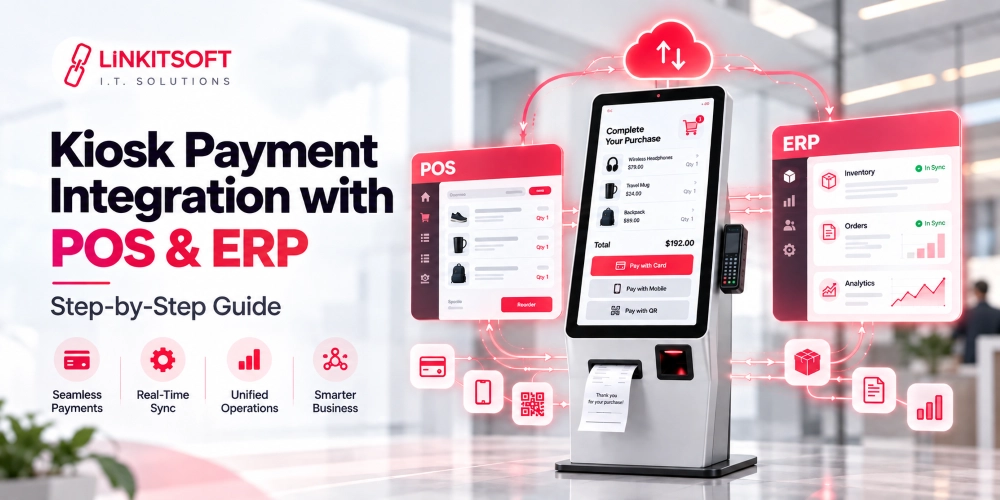
Is your kiosk processing payments but leaving your POS, inventory, and ERP systems out of sync? A reliable kiosk payment setup should connect every transaction across your POS, payment processor, inventory system, and ERP without creating duplicate records or reconciliation issues.
This guide explains how to integrate kiosk payments with POS and ERP systems step by step.
Step 1: Define the Kiosk Payment Workflow
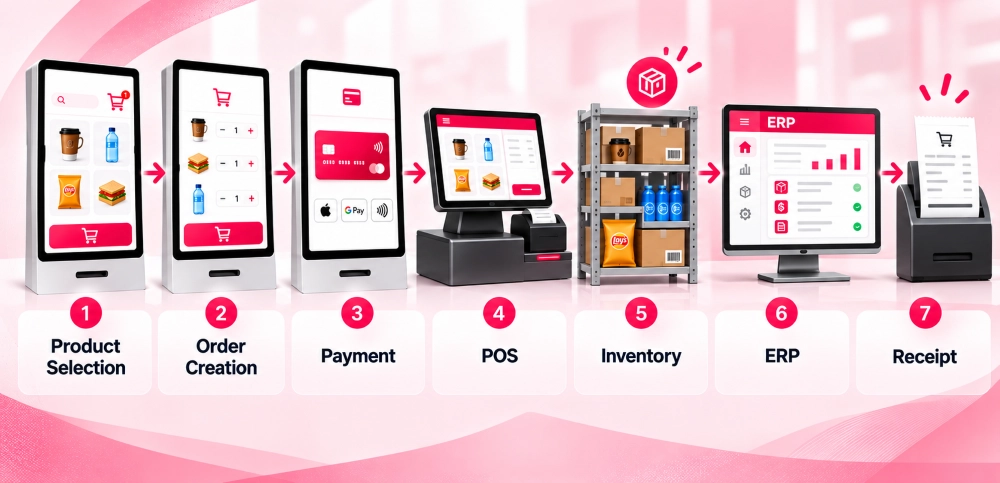
Before connecting any system, map the complete customer transaction from product selection to payment and final record creation.
Identify where products, prices, taxes, orders, inventory, and payment statuses come from.
A typical flow may be:
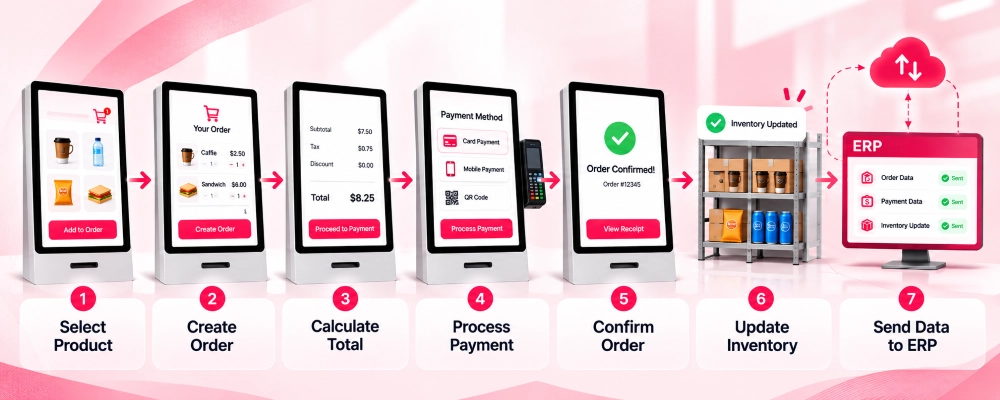
Clearly defining this workflow prevents conflicting records and helps determine which system controls each part of the transaction.
Step 2: Choose the Integration Architecture
Next, decide how the kiosk will communicate with your POS and ERP systems.
Most modern kiosk integrations use:
- REST APIs
- Webhooks
- Middleware
- POS SDKs
- Payment terminal SDKs
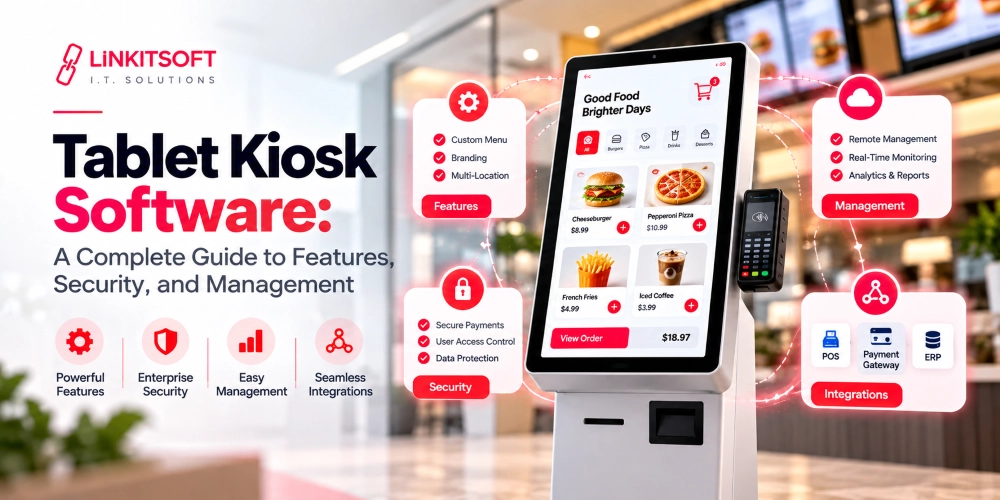
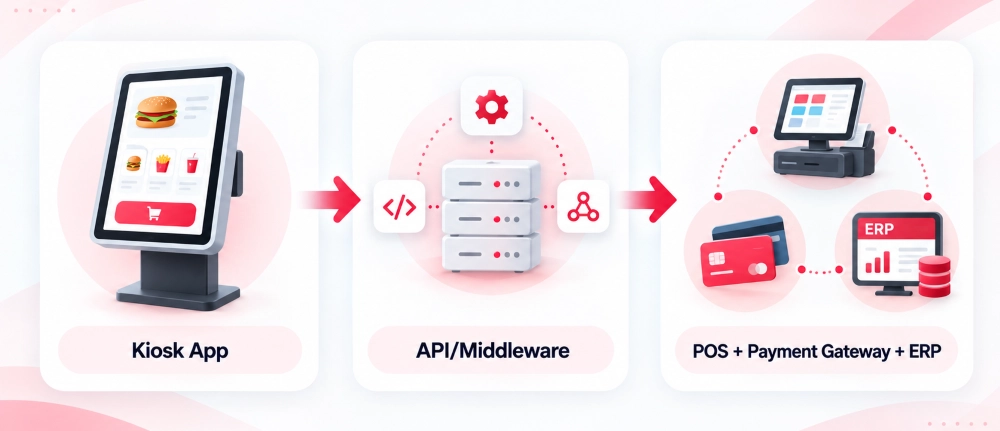
A common architecture uses the kiosk application to communicate with a secure integration layer, which then exchanges information with the POS, payment processor, and ERP.
This approach makes the system easier to maintain and prevents the kiosk from having unnecessary direct access to business databases.
Recommended diagram here:
Step 3: Connect the Kiosk With the POS
The POS usually controls the main sales transaction, including products, pricing, taxes, discounts, and order records.
Your kiosk integration should retrieve the required catalog information and send completed customer orders back to the POS.
The integration may synchronize:
- Products
- Categories
- Pricing
- Modifiers
- Taxes
- Discounts
- Order details
- Location information
Using the POS as the main transaction source helps keep kiosk sales consistent with staffed checkout counters and other sales channels.
Step 4: Integrate the Payment Terminal
The kiosk must communicate securely with the payment terminal or payment gateway.
The payment terminal may support:
- EMV chip cards
- Contactless cards
- Apple Pay
- Google Pay
- Mobile wallets
- QR payments
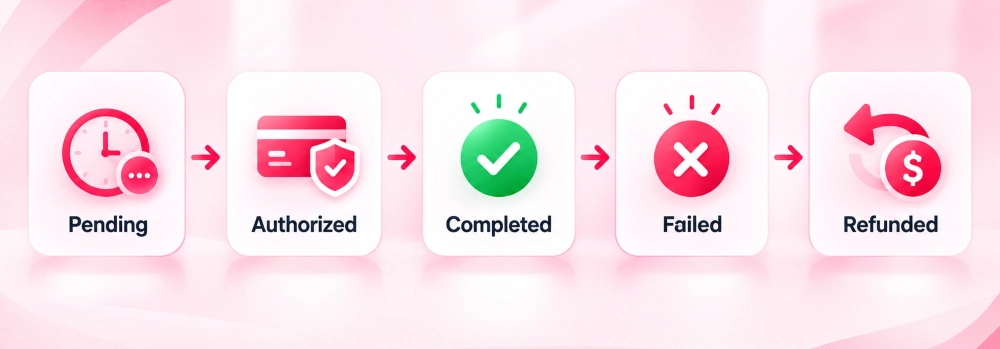
When the customer selects Pay, the kiosk sends the amount to the payment terminal. The payment provider then returns the transaction status.
The kiosk should only complete the order after receiving a confirmed payment result.
Possible statuses may include:
Step 5: Connect the ERP System
The ERP usually receives business and financial information after the transaction has been created.
Depending on the business, the ERP may receive:
- Sales data
- Inventory movements
- Payment references
- Tax information
- Invoices
- Refund records
- Location data
- Accounting entries
Instead of sending every kiosk action directly to the ERP, the integration layer should send only the information the back-office system needs.
This keeps the customer-facing kiosk fast while allowing the ERP to maintain accurate enterprise records.
Step 6: Synchronize Products, Pricing, and Inventory
The kiosk should always display accurate products, prices, and availability.
Your integration should define which system is the main source of truth.
For example:
| Data | Source System |
| Products | POS or ERP |
| Pricing | POS |
| Inventory | ERP or Inventory System |
| Payment Status | Payment Processor |
| Orders | POS |
When a customer completes a purchase, the inventory system should update stock rather than maintaining a separate stock count inside the kiosk.
This helps prevent overselling and inaccurate availability.
Step 7: Add Real-Time API and Webhook Sync
APIs allow the kiosk to request or send information, while webhooks notify your system when something changes.
For example:
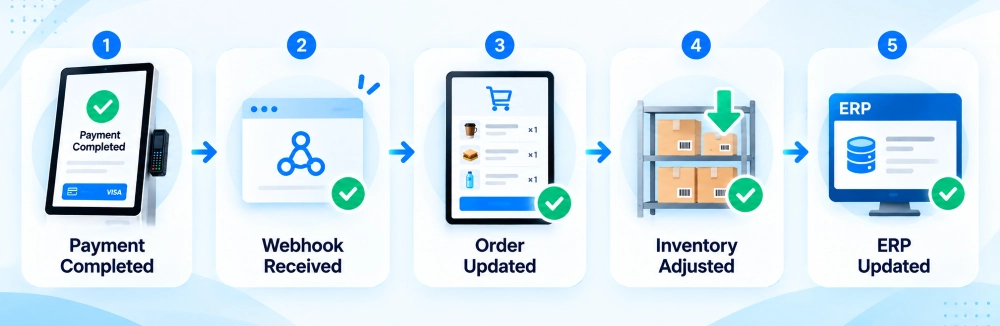
Webhooks can be useful for:
- Payment updates
- Refunds
- Order status changes
- Inventory changes
- Product changes
- Transaction failures
The system should also handle duplicate webhook events safely so the same transaction is not processed twice.
Step 8: Prevent Duplicate Payments and Orders
Network interruptions can cause the kiosk to send the same request more than once.
Without proper controls, this may create duplicates:
- Orders
- Payments
- Refunds
- Inventory deductions
Use a unique transaction or idempotency key for important requests.
For example:
KIOSK01-ORDER-000125
If the same request is submitted again, the server can recognize that the transaction has already been processed instead of creating another one.
This is especially important for payment and order APIs.
Step 9: Plan for Offline and Network Failures
What happens if the kiosk loses internet access during checkout?
That decision should be made before deployment.
The kiosk may still allow customers to browse cached products, but payment and transaction behavior depends on the payment provider and business rules.
Define:
- What data is cached?
- Can orders be queued?
- Can payments work offline?
- How are pending orders synchronized?
- What happens after reconnection?
- How are duplicate transactions prevented?
Offline mode should never automatically assume that a payment was successful.
Step 10: Secure the Payment Environment
Security is critical whenever kiosks process customer payments.
Your integration should include:
- HTTPS/TLS communication
- Secure authentication
- Payment tokenization
- Encrypted credentials
- Device authentication
- Restricted API access
- Kiosk operating-system lockdown
- Secure terminal configuration
Avoid storing sensitive card information inside the kiosk application.
Businesses handling card payments should also review applicable PCI DSS requirements with their payment provider or compliance team.
Step 11: Test the Full Transaction Flow
Do not test only individual APIs.
Test the complete kiosk transaction from the customer’s perspective.
Verify:
Also test failure scenarios such as:
- Declined payments
- Network interruptions
- Duplicate requests
- POS downtime
- ERP downtime
- Printer failure
- Refunds
- Partial refunds
- Kiosk restart during payment
These scenarios are often where real production problems appear.
Step 12: Deploy and Monitor the Kiosk
After testing, deploy the kiosk and monitor its performance from a centralized management system.
Useful monitoring data includes:
- Kiosk online/offline status
- Payment terminal connection
- Failed transactions
- API errors
- Inventory sync failures
- Application version
- Printer status
- Last device heartbeat
Remote monitoring helps support teams detect problems before customers report them.
It also makes multi-location kiosk management much easier.
Common Kiosk Payment Integration Problems
Even a technically working kiosk can create operational problems if the integration is poorly designed.
Common issues include:
Duplicate Transactions
Usually caused by retries without idempotency controls.
Incorrect Inventory
Often happens when the kiosk and ERP maintain separate inventory values.
Outdated Pricing
Occurs when kiosk prices are managed separately from the POS.
Payment Completed but Order Missing
This can happen if payment succeeds, but the POS request fails afterward.
Failed ERP Synchronization
ERP downtime may prevent back-office data from updating even though the customer transaction completed successfully.
Each of these cases needs clear retry and reconciliation rules.
POS Integration vs. ERP Integration
POS and ERP systems serve different roles in kiosk integration.
| POS | ERP |
| Handles customer transactions | Handles back-office operations |
| Controls pricing | Manages financial records |
| Creates orders | Tracks accounting data |
| Applies discounts | Manages broader inventory |
| Supports checkout | Supports reporting and reconciliation |
In most architectures, the kiosk communicates more frequently with the POS, while the ERP receives synchronized transaction and business data behind the scenes.
What Do You Need Before Starting Integration?
Before development begins, collect:
- POS API documentation
- ERP API documentation
- Payment gateway documentation
- Sandbox credentials
- Payment terminal details
- Product IDs
- Location IDs
- Tax rules
- Inventory rules
- Refund workflow
- Webhook details
- Offline requirements
- Security requirements
Having this information available early reduces development delays and integration problems.
Final Thoughts
Kiosk payment integration is more than connecting a card reader to a touchscreen.
A reliable kiosk needs a structured connection between the kiosk application, POS, payment processor, inventory system, and ERP.
The most effective approach is to define the transaction workflow first, use secure APIs or middleware, establish clear data ownership, synchronize payment and inventory events carefully, and thoroughly test failure scenarios before launch.
With the right integration architecture, businesses can provide faster self-service payments while keeping orders, inventory, and financial records synchronized across their existing systems.