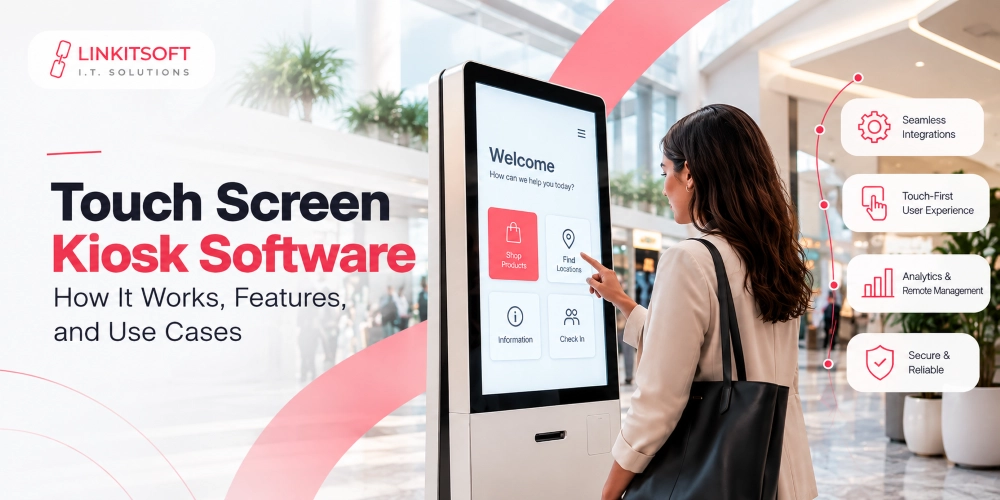
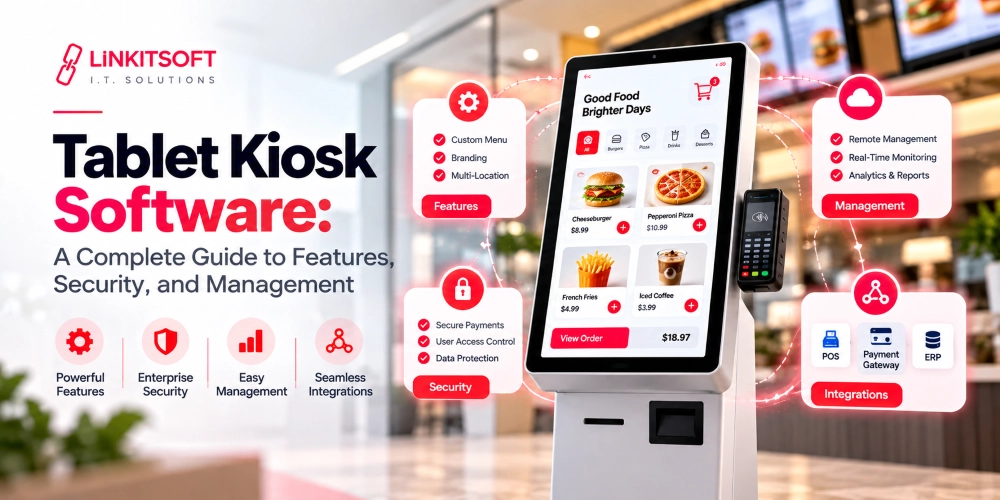
Tablet kiosk software turns regular tablets into dedicated devices for business use. It allows businesses to control which applications users can access, restrict device settings, and manage how tablets behave during everyday operations.
Whether a tablet is used for customer check-ins, product browsing, employee attendance, or self-service payments, the software determines how users interact with it and how much control administrators have over the device.
This guide covers how tablet kiosk software works, the features it offers, and what businesses should consider when deploying and managing them.
What Is Tablet Kiosk Software?
Tablet kiosk software allows businesses to configure tablets for specific tasks while restricting access to other parts of the device. It controls which apps users can open, what functions they can access, and how the tablet behaves during and between sessions. Basically, it allows small businesses and startups to use a simple tablet as a kiosk.
For example, a tablet used for visitor registration can be configured to run only the registration app. Visitors can enter their details and complete the check-in process without accessing the device’s settings or other apps.
Unlike regular tablets designed for unrestricted personal use, kiosk tablets are configured around a specific business purpose. Administrators can also manage their updates without having to configure every device manually.
How Does Tablet Kiosk Software Work?
It restricts a device to the approved apps and controls how users interact with them. It also manages the tablet’s behavior during startup, active sessions, and periods of inactivity. The process generally involves the following steps.
- Device configuration: Administrators configure the tablet and define the restrictions users must follow.
- Kiosk mode activation: The tablet launches in its designated kiosk environment, limiting access to the rest of the device.
- User interaction: Users interact with the approved app through the touchscreen and complete the available tasks.
- Session management: The software resets the session when a user finishes, or an inactivity timeout is reached.
- Device management: Administrators monitor the tablet and deploy updates through available management tools.
This setup allows businesses to control the tablet’s behavior while keeping the intended app accessible to users.
What Features Should Tablet Kiosk Software Include?
The required features depend on how the tablet will be used. However, most business deployments need a combination of app restrictions, session controls, and device management capabilities.
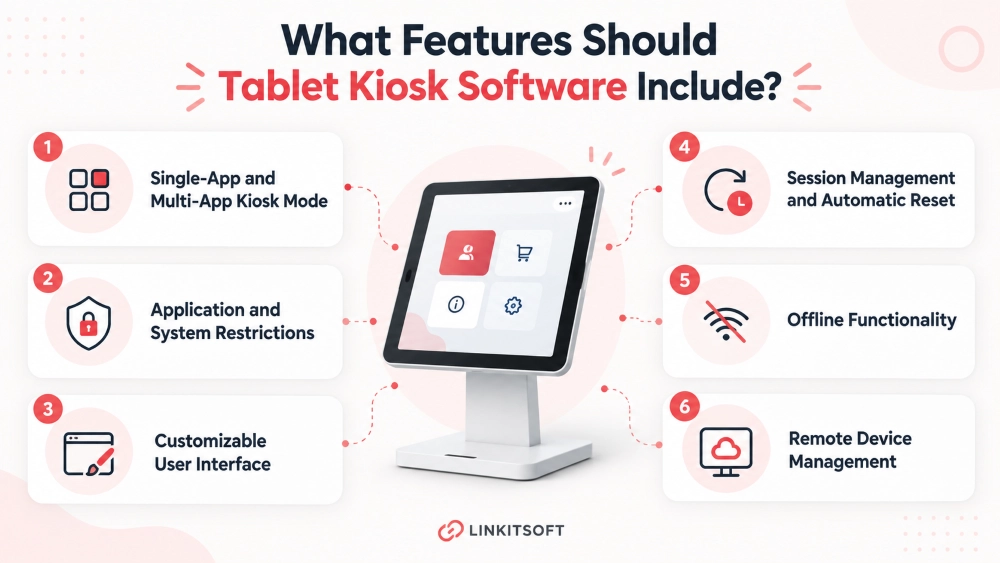
Single-App and Multi-App Kiosk Mode
Single-app mode restricts the tablet only to the app that has been selected. It is suitable for tasks such as visitor check-in, digital menus, and surveys.
Multi-app mode allows users to access a whole selection of apps while keeping the rest of the device restricted. It is useful when employees or customers need to switch between a few approved tools without accessing the full operating system.
Application and System Restrictions
Kiosk software controls which apps can run and prevents users from accessing restricted parts of the operating system. Depending on the platform, this can include blocking app installation and limiting access to notification panels.
These restrictions keep the tablet focused on its intended purpose and prevent users from changing its configuration.
Customizable User Interface
The interface should reflect the task the tablet is designed to perform. Businesses may need custom branding, specific navigation options, or workflows customized for their services.
For example, a retail kiosk may display product categories, while an employee kiosk may provide attendance and HR options.
Session Management and Automatic Reset
Shared tablets need to separate one user’s activity from the next. Session management allows the software to reset the interface after a completed task or a period of inactivity.
Depending on the app, this can include removing session data and returning the tablet to its welcome screen.
Offline Functionality
Some tablet deployments operate in locations where internet connectivity is unreliable. Offline functions allow supported apps to continue performing specific tasks without a constant internet connection.
The software should also handle data synchronization when connectivity returns, particularly when transactions or user submissions need to reach a central system.
Remote Device Management
Remote management allows administrators to monitor and configure tablets without visiting each device. Depending on the platform, this can include changing kiosk settings, restarting devices, and checking device status.
For businesses operating multiple tablets, this type of management also helps maintain consistent configurations across locations.
iPad Kiosk vs. Android Kiosk: What’s the Difference?
Tablet based kiosk software works differently depending on the operating system. iPads use Apple’s built-in kiosk and device management capabilities, while Android tablets offer their own kiosk modes and device management options.
iPad Kiosk Software
iPad kiosk deployments typically use Apple’s built-in device restrictions and management capabilities.
- Single-App Mode: Locks the iPad to one app, preventing users from switching to other apps.
- Multi-App Restrictions: Allows access to selected apps through supported device management configurations.
- Device Management: Uses Apple device management tools to configure restrictions and manage supported devices remotely.
- System Restrictions: Controls access to features such as settings and other system functions, depending on the configuration.
Android Kiosk Software
Android tablets support different kiosk configurations, depending on the device and software being used.
- Single-App and Multi-App Modes: Supports locking tablets to one app or allowing access to a predefined selection of apps.
- Device Restrictions: Controls access to system settings, app installation, and other device functions.
- Flexible Device Management: Supports remote configuration and device monitoring through compatible kiosk management solutions.
- Hardware Integration: Supports a range of peripherals, depending on the tablet model and software.
Which Should You Choose?
The choice depends on your:
- Existing hardware
- Application requirements
- Device management needs
iPads use Apple’s device management ecosystem.
Android tablets offer a wider range of device configurations and hardware options.
In either case, check that the kiosk software supports the specific restrictions and management capabilities that you require.
How Do You Secure and Lock Down a Tablet With Kiosk Software?
Locking a tablet to a certain platform is only part of securing it. Businesses also need to control administrator access and ensure the device remains restricted after a restart.
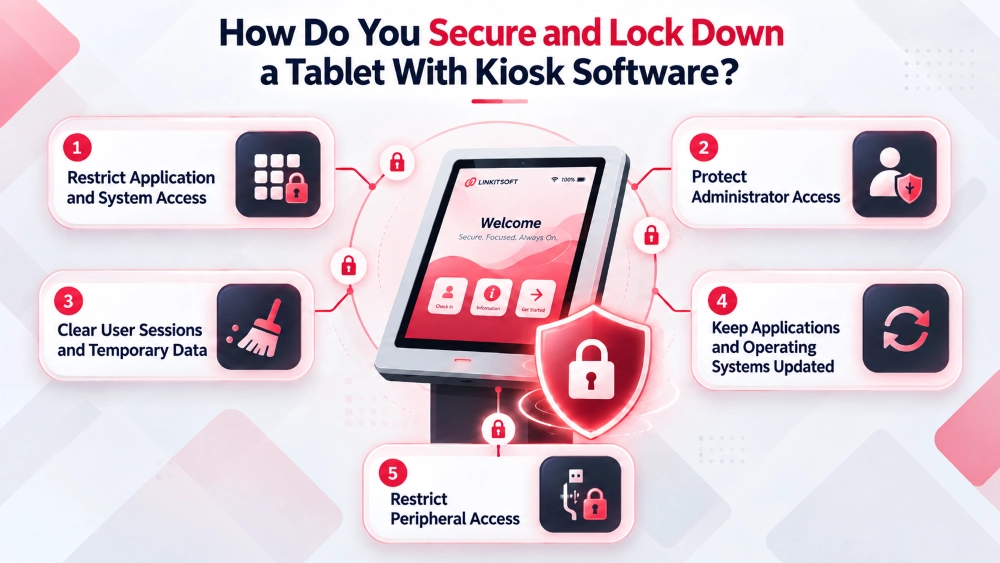
Restrict Application and System Access
Configure the tablet to prevent users from accessing system settings or other restricted functions. Kiosk mode should also launch automatically after a restart so the device does not become accessible through an unlocked home screen.
Protect Administrator Access
Administrators need access to device settings and management functions, but public users should not. Separate administrator credentials and role-based permissions help prevent unauthorized configuration changes while preserving access for authorized staff.
Clear User Sessions and Temporary Data
A shared tablet should not expose one user’s information to the next. Configure session timeouts and automatic resets to clear temporary data and return the app to its starting screen. It should prevent information from remaining visible after a session ends.
Keep Applications and Operating Systems Updated
Outdated software can expose tablets to known vulnerabilities. Establish a controlled update process for the operating system and other approved software. Updates should be tested before being deployed across the entire fleet, particularly when tablets support payments or other critical operations.
Restrict Peripheral Access
Control access to USB devices, Bluetooth connections, and other peripherals according to the tablet’s intended use. Keep necessary connections available while disabling those that users do not need.
How Do You Manage Multiple Tablets With Kiosk Software?
Managing several tablets individually becomes difficult as a deployment grows. Central management gives administrators a way to monitor devices and maintain control across multiple locations.
Centralized Device Configuration
Administrators can apply kiosk settings and application restrictions to individual devices or groups of tablets. Grouping devices by location or function makes it easier to maintain consistent configurations.
Remote Monitoring and Alerts
Device monitoring provides visibility into which tablets are online or experiencing problems. Alerts for connectivity issues and failed updates help administrators identify devices that need attention.
Remote Updates and Maintenance
Administrators can deploy approved application updates, change configurations, and perform supported maintenance tasks remotely. This reduces the need for staff to visit each tablet whenever a change is required.
Remote Locking and Recovery
If a tablet is lost, compromised, or behaving unexpectedly, administrators may be able to lock it remotely, remove business data, or restore its configuration. Available recovery options depend on the kiosk software and operating system.
What Should You Consider When Choosing Tablet Kiosk Software?
Before selecting tablet kiosk software, businesses should consider how the devices will be used and what level of control their deployment requires.
- Operating system compatibility: Check whether the software supports the Android or iPad devices you intend to use.
- Kiosk mode requirements: Determine whether you need single-app or multi-app restrictions.
- Hardware compatibility: Check support for required printers, scanners, payment terminals, or other peripherals.
- Security controls: Consider application restrictions, administrator permissions, and session management.
- Remote management: Check whether the software supports centralized configuration, monitoring, and updates.
- Scalability: Make sure the management platform can accommodate additional tablets and locations as the deployment grows.
- Customization: Consider whether the software supports your required interface, workflows, and business integrations.
Choosing software based on these requirements helps avoid limitations that may become difficult or expensive to address after deployment.