
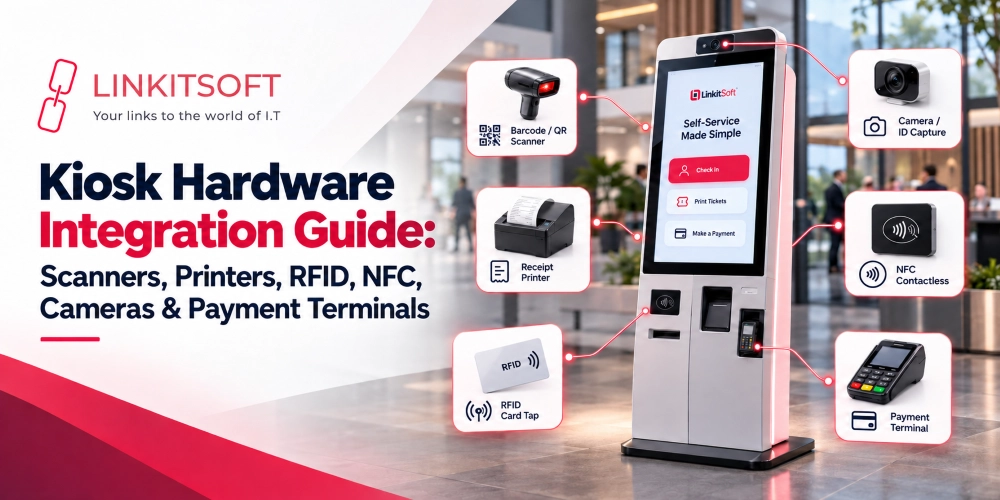
A kiosk often needs to do more than display information and respond to taps. It often needs to be able to scan a ticket, read an employee card, or accept a payment. Each of these tasks depends on the software of the kiosk communicating properly with the hardware that’s connected to it.
To get these devices to work together, the software needs to support the hardware and know what to do when something goes wrong.
In this guide, we’ll look at the hardware commonly used with kiosks and what to consider when integrating them into a working kiosk solution.
What Is Kiosk Hardware Integration?
Kiosk hardware integration is the process of connecting physical devices to kiosk software so they can work together as part of the same application.
Take a self service check in kiosk as an example. A visitor might scan a QR code from a booking confirmation and receive a printed badge. Here:
- The scanner will capture the code
- The app will check the booking
- The printer will print out the badge
Both the hardware devices handle a different part of the process, but the software connects them into one experience.
The communication method depends on the device. Some peripherals work through standard operating system support, while others need:
- Manufacturer supplied drivers
- Software development kits (SDKs)
- Application Programming Interfaces (APIs)
The connection may use USB or other supported methods. Compatibility plays a huge role here. Checking the details early can save problems during development.
What Hardware Can Kiosk Software Integrate With?
The hardware that a kiosk will require depends on the purpose it’s meant to serve.

Barcode and QR Code Scanners
Barcode and QR code scanners let users enter information without typing it manually. They are commonly used in:
- Ticketing
- Retail
- Appointment check in
- Visitor registration
- Self service ordering
The software also needs to account for unsuccessful scans. A damaged barcode or an unsupported code format can prevent a successful read. The kiosk should let the user try again and explain what went wrong where possible, rather than leaving them stuck on the scanning screen.
Printers
Printers are useful when a kiosk needs to provide something physical at the end of a transaction. Depending on the application, this could be a:
- Receipt
- Ticket
- Queue number
- Visitor badge
- Confirmation slip
Thermal printers are common in kiosks that print receipts and tickets because they can produce output quickly without using traditional ink cartridges. Other compatible printers may be more suitable for badges or documents that require different print formats. The software needs to know which printer is connected and how to send the correct print job.
RFID and NFC Readers
RFID and NFC readers allow kiosks to identify cards and compatible tags without requiring users to enter information manually. RFID is commonly used for:
- Employee identification
- Access systems
- Asset tracking
NFC supports short range communication and is often used for contactless interactions, including compatible cards and mobile devices. It is also important to understand the type of card or tag being used. Different technologies and card formats are not necessarily interchangeable, so the reader must support the credentials already in use.
Cameras
Cameras are often connected to a kiosk for a variety of purposes. Mainly, cameras are used to:
- Support visitor registration
- Photo capture
- Identity verification
- Workflows that require an image
Privacy deserves particular attention when using cameras. Businesses should collect only the images they actually need, restrict access to them, and establish how long they will be retained.
Payment Terminals
Payment terminals are quite common in almost every industry. They normally let customers pay for their:
- Orders
- Services
- Tickets
- Other transactions
The application communicates with the terminal, sends the payment request through the supported integration, and handles whatever response comes back. The software should check transaction status before allowing another attempt where that’s possible.
How Does Kiosk Software Communicate With Hardware?
The exact setup varies by device and manufacturer, but the process usually involves a few basic steps.

Device Drivers and SDKs
A device driver allows the operating system to communicate with supported hardware. Some devices work with standard drivers, while others require software supplied by the manufacturer.
An SDK provides developers with tools and functions for using a device’s capabilities. For instance, a printer SDK might provide methods for sending print jobs or controlling supported printing options.
Before development begins, it is worth checking whether the manufacturer provides drivers or an SDK for the kiosk’s operating system.
APIs and Communication Interfaces
An API defines how software can request information or actions from another component. A hardware manufacturer may provide an API that lets the kiosk app initiate a scan or retrieve a device status.
The physical connection is a separate consideration. A device might connect through USB or another supported interface. The app must use a communication method that the device and its software support.
Not every peripheral works in the same way. Some scanners behave much like keyboards and send scanned text into a focused input field. Others require a dedicated driver or SDK to access more advanced functions.
Understanding these differences helps developers choose the right integration approach.
Application and Backend Coordination
Hardware integration frequently extends beyond just the kiosk and the device. The application may need to send information to a backend system and wait for a response before doing anything else.
A ticketing kiosk reads a code, sends it to the ticketing system, waits for validity confirmation, and then either prints a ticket or displays a rejection. Each step needs to happen in the right sequence. If the ticket is invalid, the kiosk doesn’t print something suggesting the opposite. If printing fails after a successful validation, those are recorded as separate outcomes.
Planning these interactions properly prevents the confusing situations where partial success looks like complete failure or vice versa.
How Do You Handle Hardware Errors and Failed Operations?
Even compatible devices can fail occasionally. The software needs to handle these situations without forcing users to start over unnecessarily.
A few things are particularly important:
- Detect device problems: The app should identify when a device is disconnected or not responding within the expected time.
- Explain what happened: Show a useful message when a scan fails or a payment cannot be confirmed.
- Retry when it is safe: A failed scan can usually be attempted again. A payment request, however, may need a status check before it is repeated.
- Keep a record of errors: Logs can help support teams identify recurring device problems and understand what happened during a failed operation.
- Protect transaction status: If one step fails after another has succeeded, the software should preserve that distinction.
For kiosks used across several locations, remote troubleshooting can also be valuable. Support teams may be able to review error logs and device status without sending someone to inspect every machine in person.
How Do You Secure Kiosk Hardware Integrations?
Connected devices can capture personal information, handle payment data, or provide access to business systems. Their integration should be treated as part of the kiosk’s overall security setup.
Restrict Access to Connected Devices
Users should not be able to access device settings or launch unrelated applications through a public facing kiosk. Administrative controls should be restricted to authorized personnel.
The application should also expose only the hardware functions needed for its intended workflow.
Protect Data Captured by Scanners and Cameras
Scanned IDs and captured images may contain sensitive information. The software should avoid collecting unnecessary data and protect any information it stores or transmits.
Access permissions and secure deletion procedures should be considered as part of the design.
Secure Communication With Other Systems
Information moving between the kiosk, its connected devices, and backend services should be protected using appropriate security measures. Network communication should use secure protocols where supported, and API access should be controlled through suitable authentication and permissions.
Hardware integration should not create an unrestricted path into the business’s internal systems.
Follow Payment Security Requirements
Payment terminals should be integrated through supported payment solutions that meet the applicable security requirements. The kiosk application should avoid handling or storing sensitive card data unless the architecture and compliance requirements explicitly permit it.
Using a compatible payment terminal does not automatically make the entire kiosk payment process secure. The surrounding software and network setup matter too.
Keep Device Software Updated
Drivers and kiosk apps may need updates to address compatibility problems or security vulnerabilities. Updates should be tested with the connected hardware before being deployed across a live kiosk network.
What Should You Check Before Integrating Kiosk Hardware?
It is much easier to identify compatibility issues before development. When you compare that to identifying them after the kiosk has been installed. Before choosing devices, check the following:
- Operating system compatibility: Confirm that the device supports the kiosk’s operating system and version.
- Vendor documentation: Check whether suitable drivers and technical documentation are available.
- Connection and power requirements: Make sure the kiosk computer supports the required ports and power needs.
- Performance and reliability: Consider how quickly the device needs to respond and how frequently it will be used throughout the day.
- Backend integrations: Identify whether scanned data or captured images need to be sent to another system.
- Error handling and maintenance: Find out how device failures are detected and whether remote diagnostics are available.
It is also worth testing the complete workflow together. Each of the devices doesn’t need to be tested separately. Look at how they work together. These checks help uncover problems that may not appear during a normal demonstration.