Why do customers struggle with self-service kiosks? Are confusing menus, too many steps, and hard-to-find buttons slowing down transactions and frustrating users?
Good kiosk UI/UX design helps solve these problems by making every interaction simpler, faster, and easier to understand. From clear navigation to smooth checkout flows, thoughtful design helps customers complete tasks with fewer mistakes and less assistance.
In this guide, you’ll discover 10 practical steps to design faster, easier self-service kiosk experiences, common mistakes to avoid, and ways to improve usability after launch.
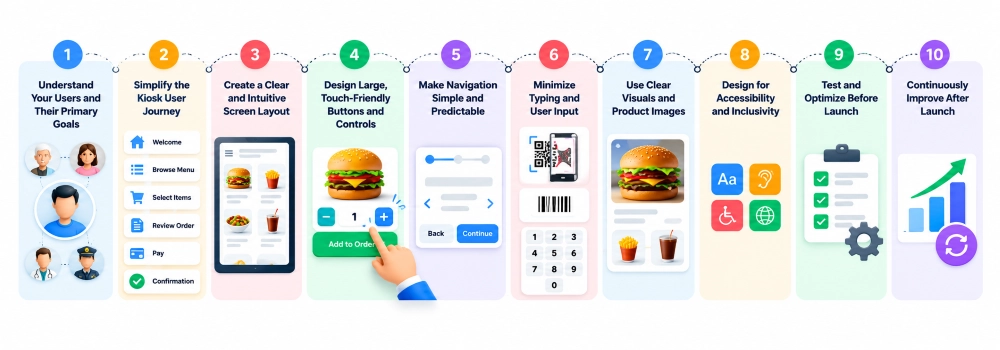
10 Essential Steps to Design an Effective Kiosk Interface
Designing an effective self-service kiosk starts with understanding what customers want to achieve and removing anything that makes the process difficult.
The key is to simplify user journeys, create clear screen layouts, use comfortable touch controls, reduce unnecessary input, and test the experience with real users. These decisions help make self-service more intuitive and efficient.
Here are 10 practical steps to follow.
Step 1: Understand Your Users and Their Primary Goals
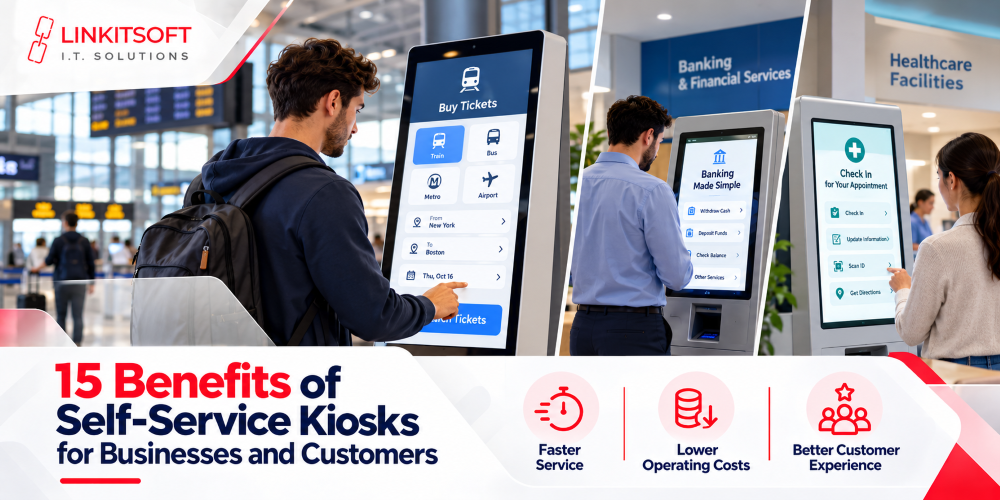
Before designing a kiosk screen, identify who will use it and what they want to accomplish. A restaurant customer wants to order food quickly. A hospital visitor may need to check in for an appointment. Someone using a ticketing kiosk wants to select and purchase tickets without confusion.
Each task requires a different approach.
Start by asking:
- Who are the primary users of the kiosk?
- What is the most important task they need to complete?
- What information do they need to get started?
- What difficulties might they face?
- Do they need additional language or accessibility support?
Use the answers to decide which features should be prominent and which can remain secondary.
Example: A healthcare kiosk should make “Check In” and “Find Appointment” easy to locate instead of filling the welcome screen with unrelated options.
Design tip: Prioritize the user’s main goal rather than displaying every available feature.
Step 2: Simplify the Kiosk User Journey
A kiosk user journey is the path customers follow from the welcome screen to completing their task. The simpler and clearer this journey is, the easier the experience becomes.
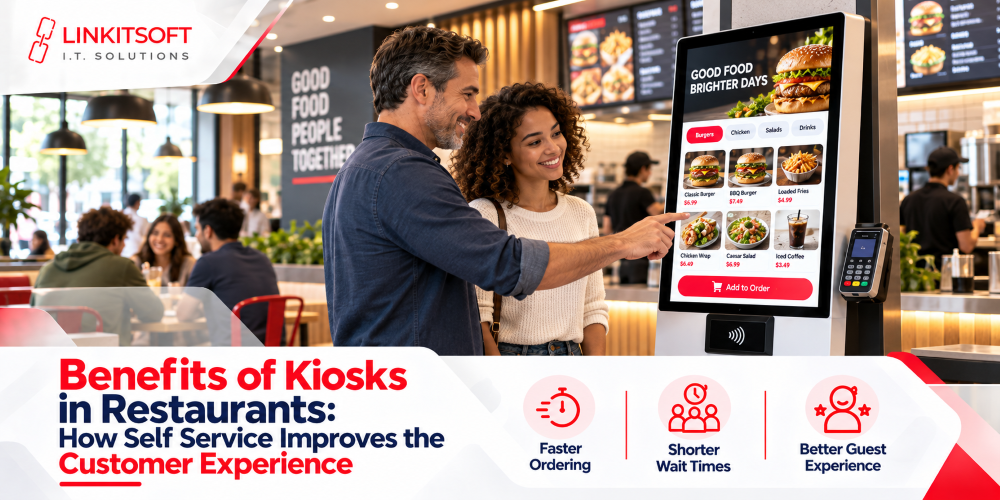
For example, a restaurant ordering kiosk might follow this flow:
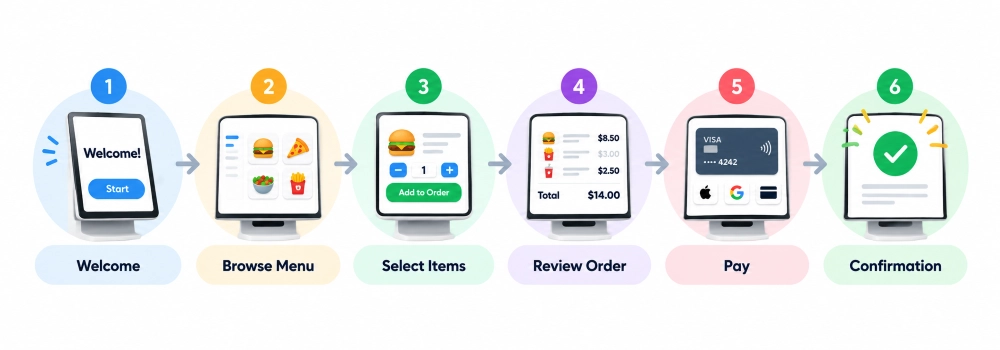
Welcome → Browse Menu → Select Items → Review Order → Pay → Confirmation
Each step should serve a purpose.
To improve the journey:
- Remove unnecessary screens and repeated questions.
- Group related actions together.
- Allow customers to edit selections without starting over.
- Make it easy to move backward when needed.
- Avoid asking users to enter information more than once.
However, fewer screens do not always mean better usability. A screen filled with too many choices may create more confusion than two well-organized screens.
Example: If a customer wants to remove an item from their order, they should be able to do so directly from the cart instead of restarting the ordering process.
Design tip: Reduce unnecessary actions while keeping important review and confirmation steps.
Step 3: Create a Clear and Intuitive Screen Layout
A good kiosk interface helps customers understand what to do without needing instructions from an employee. This starts with how information is arranged on the screen.
Important buttons and messages should be easy to notice, while less important details should not distract users.
Focus on these design elements:
- Visual hierarchy: Make primary actions more noticeable than secondary options.
- Readable text: Choose clear fonts and suitable text sizes.
- Proper spacing: Leave enough room between controls and information.
- Logical grouping: Place related items together.
- Simple wording: Use familiar terms instead of technical language.
Avoid overcrowding screens with promotional banners, unnecessary text, or too many options.
Example: On a ticketing kiosk, the welcome screen could display two prominent options: “Buy Tickets” and “Collect Tickets.” Other services can appear in a less prominent area.
Design tip: Every screen should have a clear purpose and an obvious next action.
Step 4: Design Large, Touch-Friendly Buttons and Controls
A self-service kiosk should be easy to operate with a simple tap. If buttons are too small or placed too close together, customers may select the wrong options or struggle to complete their tasks.
To create a comfortable touchscreen experience:
- Use buttons large enough for accurate tapping.
- Maintain suitable spacing between interactive elements.
- Make important actions visually distinct.
- Place frequently used controls within comfortable reach.
- Provide visible feedback when a button is pressed.
- Test touch accuracy on the actual kiosk hardware.
For web-based kiosk interfaces, WCAG 2.2 provides useful touch-target guidance, including a minimum of 24 × 24 CSS pixels with exceptions and an enhanced target size of 44 × 44 CSS pixels.
These are web-content measurements, not universal physical kiosk button dimensions. The appropriate size depends on the actual display, its position, and how users interact with it.
Example: A food ordering kiosk can use large “+” and “−” buttons beside each product quantity so customers can easily adjust their orders.
Design tip: Make touch interactions comfortable and accurate, especially for frequently used controls.
Step 5: Make Navigation Simple and Predictable
Customers should always know where they are, what they need to do next, and how to return to a previous step.
Confusing navigation can slow down transactions and make people abandon the process.
Keep navigation straightforward by:
- Using familiar labels such as “Back,” “Continue,” and “Finish.”
- Keeping navigation buttons in consistent locations.
- Showing progress during longer transactions.
- Providing a clear way to review previous selections.
- Making cancellation or restarting easy when appropriate.
- Avoiding hidden gestures for important actions.
For example, a hotel check-in kiosk could display:
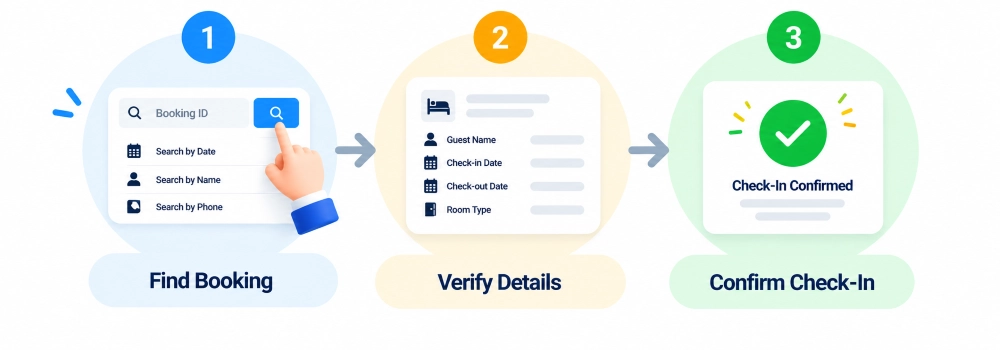
Find Booking → Verify Details → Confirm Check-In
A progress indicator helps guests understand how much of the process remains.
Design tip: Keep the navigation pattern consistent across every screen.
Step 6: Minimize Typing and User Input
Typing on a public touchscreen can be inconvenient, especially when users are standing or working with a large display.
Long forms and repeated information requests can make simple transactions feel unnecessarily complicated.
Make information entry easier by:
- Offering selectable options instead of requiring typed answers.
- Using QR codes or barcode scanning where supported.
- Keeping forms short and relevant.
- Providing numeric keypads for number-based fields.
- Pre-filling known information when appropriate and permitted.
- Removing duplicate information requests.
Example: A visitor management kiosk could allow registered visitors to scan a QR code instead of manually entering their booking details.
Some transactions still require identity verification or additional information. These steps should remain when necessary for security, accuracy, or compliance.
Design tip: Ask for only the information needed to complete the task safely and correctly.
Step 7: Make the Interface Accessible to Different Users
Not every customer interacts with technology in the same way. Some people may find small text difficult to read, while others may require wheelchair-accessible controls, alternative input methods, or language assistance. Accessible design helps make self-service usable by a wider range of people.
Important considerations include:
- Readable typography: Use clear fonts and appropriate text sizes.
- Good contrast: Make text and controls easy to distinguish.
- Accessible reach: Consider screen height and the position of interactive controls.
- Language selection: Offer relevant language options where needed.
- Alternative input: Support appropriate accessible interaction methods.
- Clear instructions: Avoid relying only on colors, icons, or sounds to communicate important information.
For example, a failed payment should display a readable explanation instead of communicating the problem through a red icon alone.
Accessibility requirements also depend on the kiosk’s purpose and location. Digital guidelines can help inform the interface, but physical accessibility must be assessed separately.
Example: A public information kiosk can offer visible language options, readable directions, and accessible controls to help more visitors find the information they need.
Design tip: Consider different user needs from the beginning rather than adding accessibility features at the end.
Step 8: Provide Instant Feedback and Easy Error Recovery
Customers need to know that the kiosk has recognized their actions. If someone taps a button and receives no response, they may tap again, become confused, or assume the machine is not working.
Clear feedback helps prevent that uncertainty.
An effective kiosk should:
- Acknowledge important button presses.
- Show loading indicators while processing.
- Display clear success and failure messages.
- Explain problems using simple language.
- Offer appropriate recovery options.
- Preserve relevant information when possible.
For example, compare these messages:
Confusing message: “Transaction Error 104.”
Clearer message: “We couldn’t complete your payment. Please follow the instructions on the screen or ask a staff member for help.”
The second message makes the problem easier to understand.
Payment systems also need reliable transaction handling. If a payment result is uncertain, the kiosk should confirm its status before offering another attempt to avoid accidental duplicate charges.
Example: If a ticket printer fails after payment, the kiosk should explain the issue and provide an available alternative or assistance option.
Design tip: Always show users what happened and what they should do next.
Step 9: Build and Test Interactive Kiosk Prototypes
Before launching a kiosk, create an interactive prototype that allows you to test how its screens and features work together.
A prototype helps reveal design problems before they affect real customers.
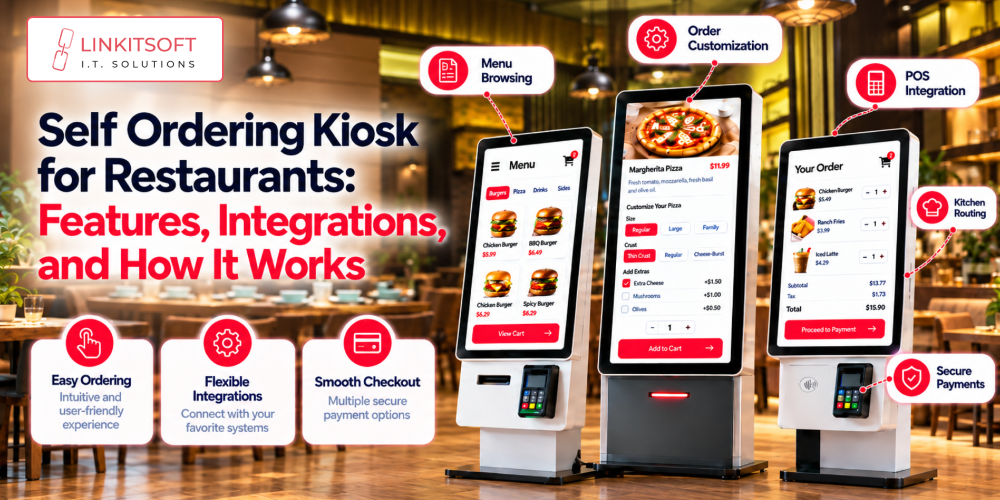
For example, a restaurant kiosk prototype can demonstrate how customers browse food categories, customize meals, update quantities, and complete checkout.
During usability testing, check whether users can:
- Identify the correct starting action.
- Understand the instructions on each screen.
- Navigate without assistance.
- Complete their intended tasks.
- Correct mistakes easily.
- Understand payment and confirmation messages.
Ask representative users to perform realistic tasks without step-by-step guidance. Observe where they hesitate, make mistakes, or need help.
Whenever possible, test on the intended kiosk hardware. Screen height, viewing distance, touch sensitivity, and connected devices can affect usability.
Example: A button that looks easy to tap on a laptop prototype might be difficult to reach on a tall freestanding kiosk.
Design tip: Test with real users in realistic conditions before deployment.
Step 10: Refine the Design for Faster Task Completion
The first version of a kiosk interface is rarely perfect. Usability testing may reveal confusing labels, difficult controls, or screens where users spend more time than expected.
Use these findings to improve the experience.
Focus on improvements such as:
- Simplifying screens where users hesitate.
- Rewriting unclear instructions.
- Adjusting buttons that cause incorrect selections.
- Removing unnecessary steps.
- Improving the visibility of important actions.
- Testing updated designs to measure improvement.
For example, if customers regularly miss the “Continue” button, changing its position or making its purpose clearer may help.
However, speed should not come at the expense of accuracy. A shorter transaction is not better if users make more mistakes.
Design tip: Aim for tasks that customers can complete both efficiently and correctly.
How Is Kiosk UI/UX Different From Mobile and Web Design?
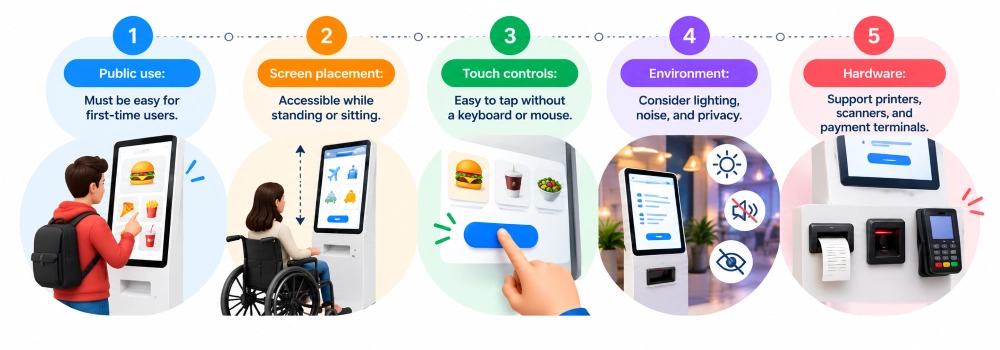
Although kiosk interfaces share some principles with websites and mobile apps, they are often used in different environments. Public kiosks may serve many first-time users who want to complete a task quickly.
Unlike personal devices, kiosks also have fixed hardware and physical placement requirements.
Key differences include:
- Public use: Must be easy for first-time users.
- Screen placement: Accessible while standing or sitting.
- Touch controls: Easy to tap without a keyboard or mouse.
- Environment: Consider lighting, noise, and privacy.
- Hardware: Support printers, scanners, and payment terminals.
A kiosk interface therefore needs to be designed for its actual environment rather than simply copying a mobile app layout.
Why Does Good Kiosk UI/UX Design Matter?
A poorly designed kiosk can lead to long wait times, customer frustration, and additional staff assistance. Good kiosk UI/UX design helps prevent these problems by making self-service faster, easier, and more accessible.
Faster Transactions and Shorter Wait Times
Clear navigation and simple workflows help customers complete tasks without unnecessary delays.
A well-designed interface supports faster transactions through:
- Clear menus: Help users find options quickly.
- Simple workflows: Reduce unnecessary steps.
- Minimal typing: Make information entry easier.
- Easy checkout: Simplify review and payment.
For example, organized food categories help restaurant customers place orders more efficiently, potentially reducing queues during busy periods.
Fewer Customer Errors and Less Staff Assistance
Confusing instructions and unclear buttons can lead to incorrect selections and incomplete transactions.
Good kiosk design helps reduce these issues through:
- Clear instructions: Guide users through each step.
- Easy navigation: Allow quick corrections.
- Order review: Let users verify details.
- Helpful errors: Explain issues and next steps.
For example, an order review screen helps customers correct mistakes before payment, reducing the need for staff assistance.
Better Accessibility and Customer Satisfaction
Accessible kiosks make self-service easier for people with different abilities and language preferences.
Important features include:
- Readable text: Clear fonts and suitable sizes.
- Touch-friendly controls: Easy-to-tap buttons.
- Language options: Support for different languages.
- Accessible layouts: Comfortable reach and interaction.
For example, a multilingual visitor kiosk with readable directions can help more people find information independently, improving their overall experience.
What Are the Most Common Kiosk UI/UX Design Mistakes?
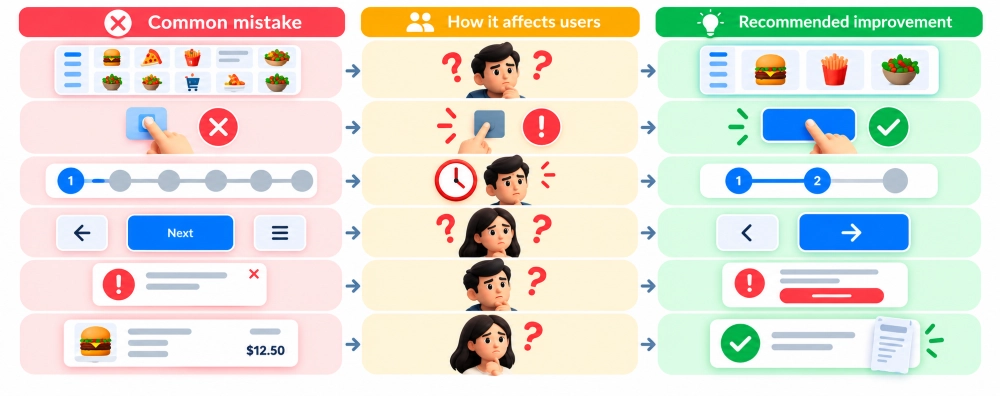
Even a kiosk with advanced features can be difficult to use if basic design problems are overlooked. Some mistakes appear during testing, while others become noticeable after the kiosk is installed.
Here are common problems and how to avoid them.
| Common mistake | How it affects users | Recommended improvement |
| Overcrowded screens | Customers struggle to find important options | Group related content and simplify layouts |
| Small or unresponsive controls | Users make incorrect selections or tap repeatedly | Improve touch target size and feedback |
| Too many transaction steps | Simple tasks take longer than necessary | Remove redundant actions |
| Inconsistent navigation | Users lose track of their progress | Keep labels and navigation controls consistent |
| Unclear error messages | Customers don’t know how to continue | Explain the problem and offer a next step |
| Missing confirmation screens | Users are unsure whether tasks succeeded | Show a clear completion result |
How to Improve Kiosk UI/UX After Launch
After launch, monitor customer interactions to identify usability issues and improve the kiosk experience.
Track Transaction Time and Task Completion Rates
Measure key performance indicators:
- Completion rate: Successfully finished tasks.
- Transaction time: Average time per task.
- Error rate: Frequency of mistakes.
- Abandonment rate: Unfinished transactions.
- Staff assistance: Requests for help.
These metrics help identify delays and usability problems.
Identify Customer Drop-Off Points and Interaction Errors
Look for common issues, including:
- Frequent transaction abandonment.
- Repeated errors on specific screens.
- Multiple taps or backward navigation.
- Regular requests for assistance.
These patterns reveal where customers struggle.
Use Customer Feedback and Analytics to Optimize the Interface
Combine user feedback with performance data to make improvements:
- Identify problem areas.
- Analyze user difficulties.
- Improve layouts and interactions.
- Test changes and monitor results.
Small, targeted updates can make kiosks easier and faster to use.
How Linkitsoft Helps Businesses Create User-Friendly Kiosks
Creating an intuitive kiosk experience involves more than designing attractive screens. The interface must also work with the business workflow, connected hardware, payment systems, and software behind it. At Linkitsoft, we develop custom kiosk software solutions for businesses with different self-service requirements.
Our kiosk development capabilities include:
- Custom UI/UX design: Simple, user-friendly interfaces.
- Kiosk software development: Solutions for ordering, checkout, and check-in.
- Payment integration: Smooth, secure payment workflows.
- Hardware integration: Support for scanners, printers, and other devices.
- Backend integration: Connectivity with business systems.
- Kiosk management: Tools for ongoing kiosk operations.
For example, restaurant kiosks need menu and payment integrations, while visitor kiosks may require check-in and badge printing. Each interface should be tailored to the business’s needs.