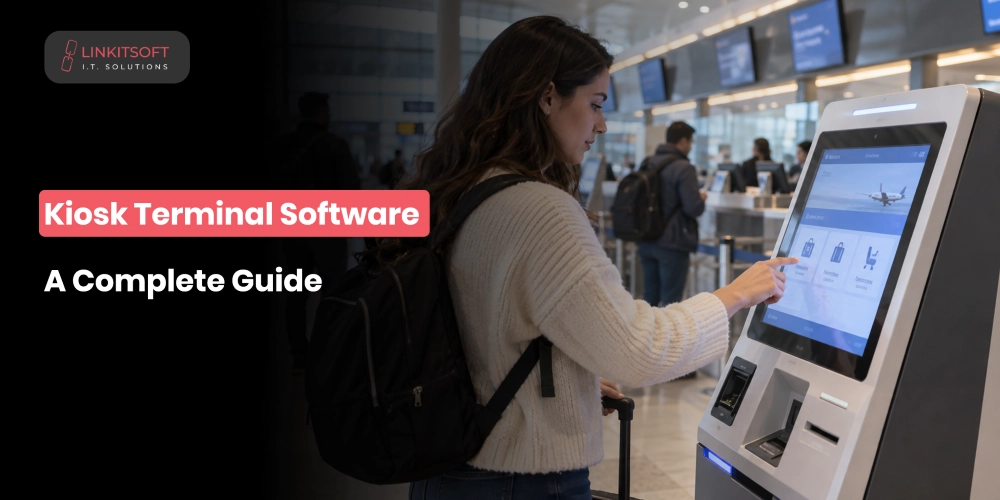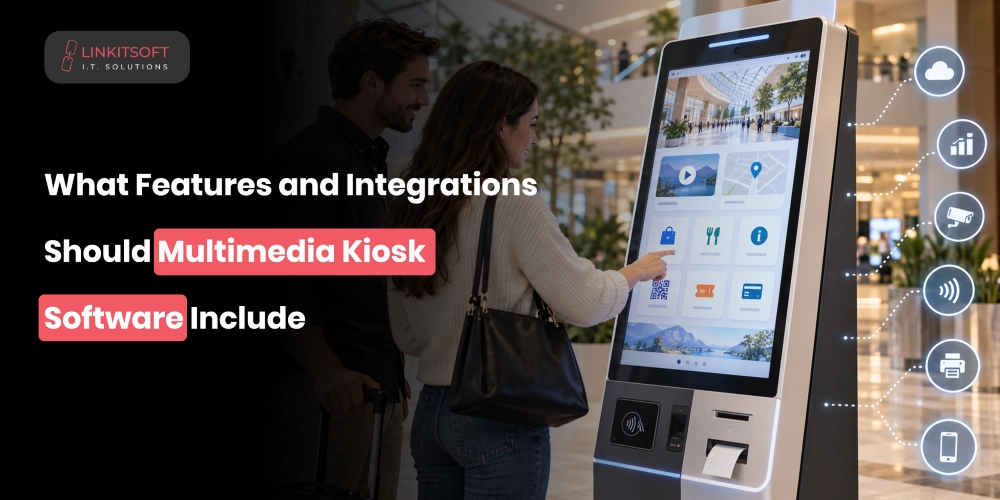
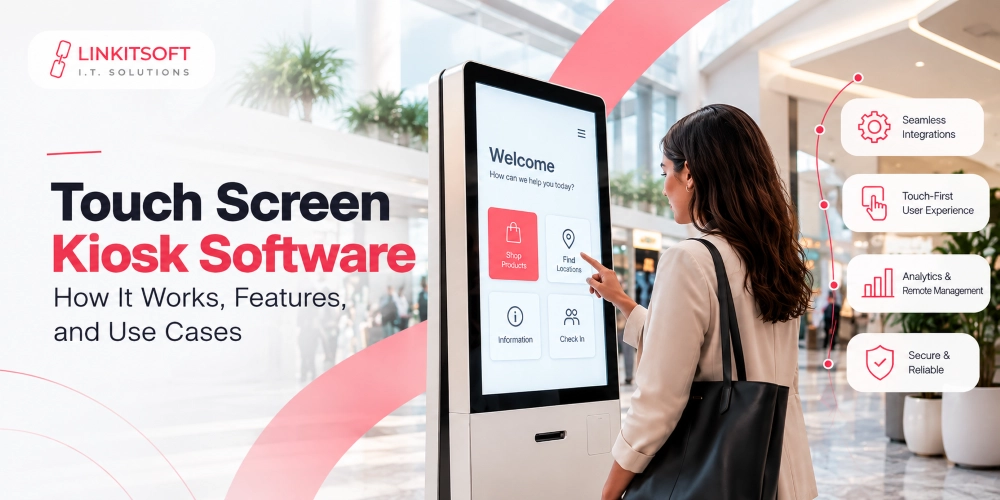
There is more happening behind a kiosk touchscreen than most people realize. When someone taps a menu option, searches for a product, enters their details, checks in, or makes a payment, the software has to capture that input, respond on screen, and connect the action with the right business system. The entire process needs to feel immediate and straightforward to the person standing in front of the kiosk.
Touch screen kiosk software makes that experience possible. It connects the user interface, application logic, kiosk hardware, and backend systems into one working environment. For businesses that need purpose-built workflows rather than a generic setup, custom kiosk software development can bring those components together around the way the kiosk actually needs to operate.
What Is Touch Screen Kiosk Software?
Touch screen kiosk software controls what appears on the display, how the interface responds to taps and gestures, and what happens after each interaction. It is designed for dedicated self-service or interactive devices rather than unrestricted personal-computer use.
For example, when a customer selects a product and moves to checkout, the software manages the screens they see while communicating with systems such as payment services, inventory platforms, printers, scanners, or a point-of-sale system. The same principle applies to check-in, ticketing, wayfinding, registration, and other kiosk workflows.
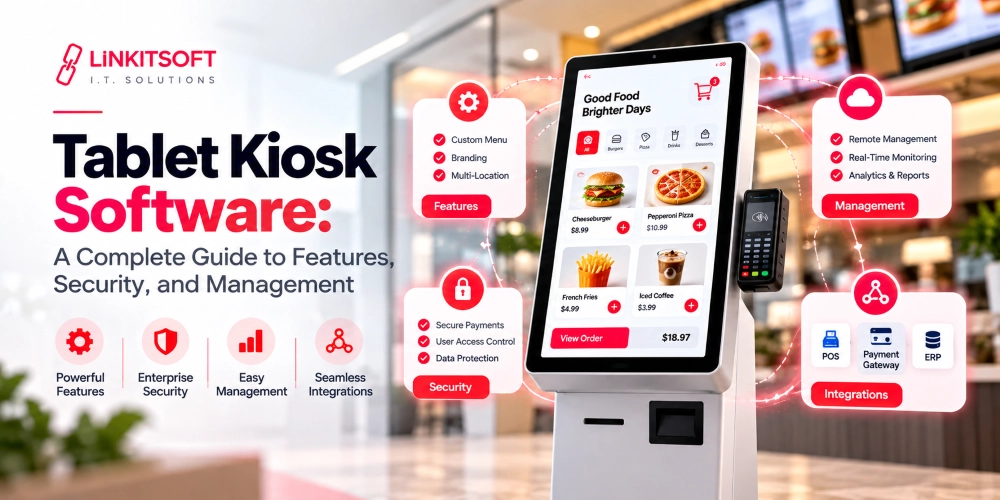
A production kiosk environment may include more than one software layer. Depending on the project, it can include the customer-facing application, kiosk lockdown controls, backend APIs or middleware, device drivers and vendor SDKs, an administration dashboard, and monitoring or analytics services.
The software also helps control the kiosk environment itself. Restricting access to operating-system settings, managing user sessions, clearing temporary information, recovering from application issues, and keeping the device in its intended mode are all important parts of a reliable deployment.
How Does Touch Screen Kiosk Software Work?
A touchscreen kiosk has several components working together. The touchscreen captures input, the kiosk application interprets that input, and connected systems complete whatever needs to happen beyond the screen.
Touch Input and Screen Response
When someone taps, swipes, scrolls, or uses a supported gesture, the software receives that input and triggers the appropriate action. Common examples include:
- Opening a menu
- Navigating to another screen
- Selecting an item
- Entering or submitting information
- Starting or confirming a transaction
The response needs to feel immediate. Noticeable delays can cause users to tap repeatedly, abandon a task, or assume that the kiosk is not working.
Application and Interface Control
The kiosk application controls the screens users see and the path they follow through the experience. Depending on the use case, that can include menus, forms, maps, product information, payment screens, check-in steps, and confirmation messages.
The flow should match both the purpose of the kiosk and the people using it. A public wayfinding kiosk needs a much simpler navigation structure than a retail kiosk presenting hundreds of products, filters, and ordering options.
Backend and API Integration
Kiosk applications often communicate with business systems through APIs, middleware, local services, or vendor SDKs. A restaurant kiosk may send orders to a POS and kitchen display system. A check-in kiosk may retrieve reservation or appointment details and then send completed registration data back to the business platform.
The software also needs to handle slow responses, temporary outages, duplicate submissions, and failed transactions gracefully. A user should receive a clear status message instead of being left on an unresponsive screen.
Hardware and Peripheral Integration
Touch screen kiosk software may also communicate with physically connected devices such as:
- Receipt or ticket printers
- Barcode and QR-code scanners
- Payment terminals and card readers
- NFC or RFID readers
- Cameras
- Signature pads
- Speakers and microphones
- Sensors or other specialized peripherals
Integration requirements vary by manufacturer and operating environment. Drivers, SDKs, communication protocols, and device permissions can differ between hardware models, so the software should be tested against the actual components planned for deployment.
What Features Should Touch Screen Kiosk Software Include?
The right feature set depends on what the kiosk is intended to do, but several capabilities are useful across many interactive and self-service deployments.
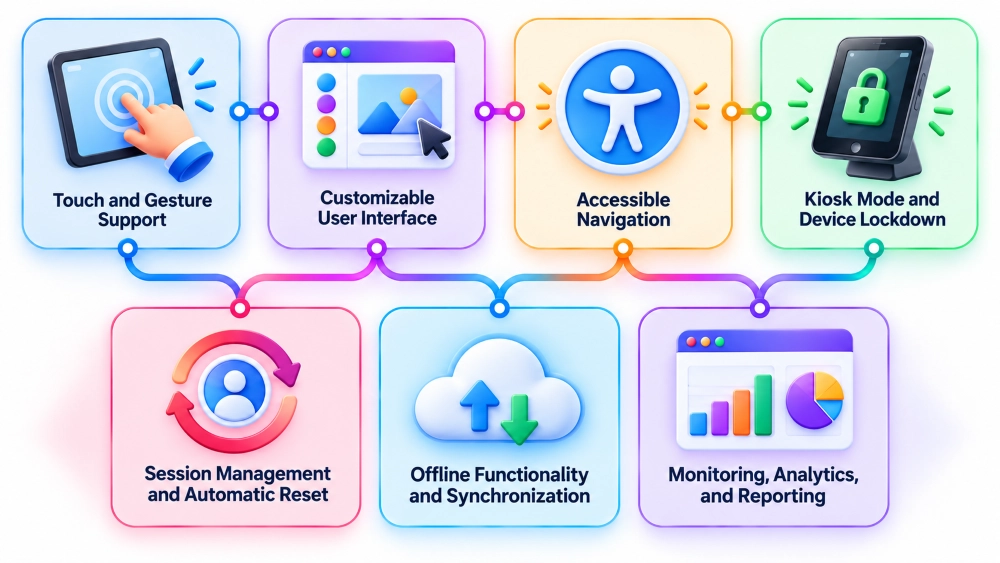
Touch and Gesture Support
Touch interactions should be responsive and consistent across the application. Standard actions such as tapping, swiping, scrolling, and dragging should behave predictably. Where the hardware supports multi-touch, the application can also use gestures such as pinch-to-zoom when they make sense for the workflow.
Customizable User Interface
The interface should be designed around the actual task rather than forcing users through unnecessary screens. Custom menus, branded visual elements, clear instructions, and appropriate control sizes all matter. The design also needs to account for the physical size, resolution, orientation, and viewing distance of the display.
Accessible Navigation
Accessibility should be considered during interface design, especially for kiosks used by the general public. Depending on the deployment, this may include readable contrast, large touch targets, clear focus states, text scaling, multilingual support, reachable controls, and compatibility with the accessibility requirements that apply to the organization or environment.
Kiosk Mode and Device Lockdown
A public kiosk cannot behave like a personal tablet or desktop computer. Users should not be able to open system settings, switch to unauthorized applications, access files, or reach the operating system. Kiosk mode and device lockdown keep the device within its intended environment. For a deeper implementation and security discussion, see LinkitSoft’s kiosk security and lockdown guide.
Session Management and Automatic Reset
When one person finishes, the next person should start with a clean session. The software should clear temporary information, expire session tokens where appropriate, return to the starting screen after completion or inactivity, and avoid exposing data from the previous user. This is particularly important when the kiosk handles personal details, registrations, or payments.
Offline Functionality and Synchronization
Some kiosks need to keep working when connectivity drops. The application can store selected content locally and, where the workflow permits, queue certain actions to synchronize when the connection returns. However, functions that require live inventory, real-time authorization, or immediate confirmation from a backend system will still need connectivity.
Offline-capable workflows also need clear rules for failed synchronization, duplicate submissions, stale data, and transactions that cannot be completed later. Those cases should be planned before deployment rather than handled as exceptions after launch.
Monitoring, Analytics, and Reporting
Operational monitoring helps teams understand whether kiosks are healthy and whether the experience is working as intended. Useful data can include device availability, application errors, peripheral status, session completion, common user paths, abandonment points, and transaction outcomes. Analytics should be collected with appropriate privacy and data-retention controls.
What Types of Interactive Kiosks Use Touch Screen Software?
Touchscreen software is used across many industries because the interface and connected systems can be adapted to very different tasks.
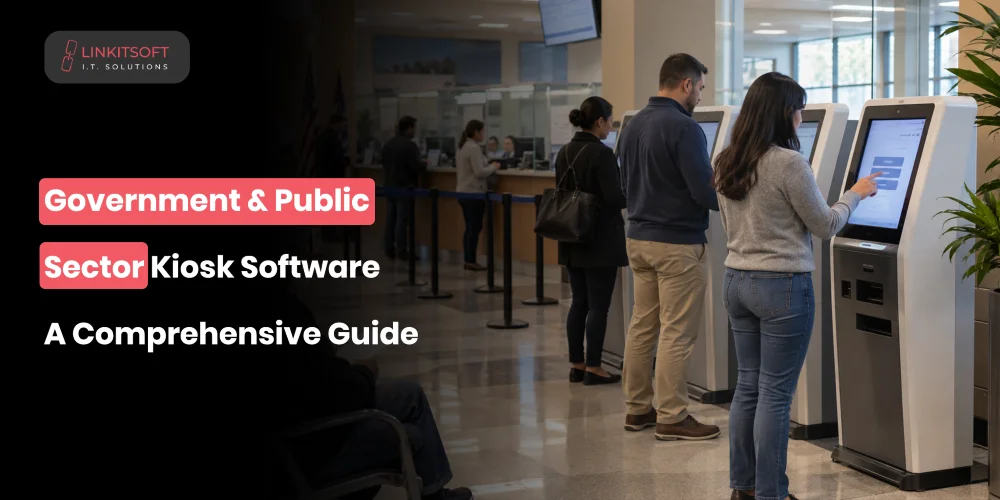
Information and Directory Kiosks
Information and directory kiosks help visitors find what they need without requiring staff assistance. They may provide searchable directories, building maps, event details, service information, or step-by-step directions. They are common in hospitals, airports, campuses, malls, government facilities, and large office buildings.
Self-Service Ordering Kiosks
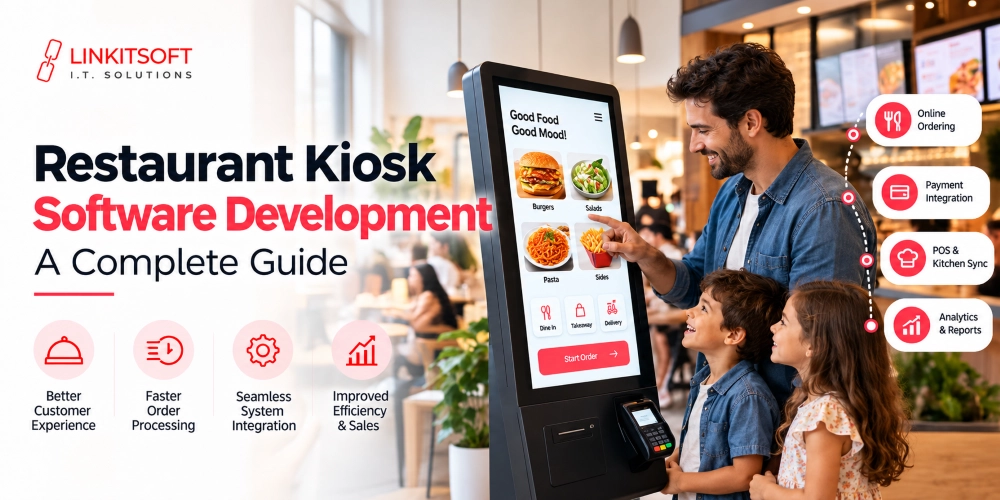
Restaurants and food-service businesses use touchscreen kiosks to let customers browse menus, customize orders, and pay at the screen. The completed order can be sent directly to the POS or kitchen system so staff do not need to re-enter the transaction manually.
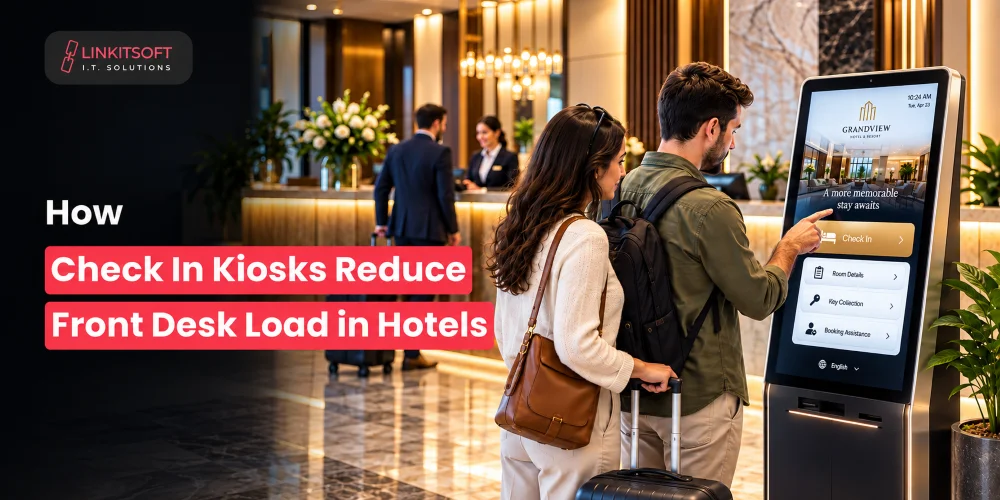
Check-In and Registration Kiosks
Check-in and registration kiosks are used in hotels, healthcare facilities, offices, events, airports, and other locations that need structured visitor or customer intake. Depending on the workflow, they can:
- Collect customer, visitor, patient, or attendee information
- Retrieve or update appointment and registration records
- Verify identities
- Process permitted payments
- Capture signatures
- Print badges, tickets, or labels
These kiosks often connect to a backend platform and may also trigger email, SMS, or application notifications when the broader workflow requires them.
Product Catalog and Retail Kiosks
Retail kiosks can give customers access to a broader product range than what is physically available on the shop floor. They may support product search, specifications, availability checks, guided selection, and direct ordering. This can be especially useful when floor space limits the inventory that can be displayed.
Ticketing and Payment Kiosks
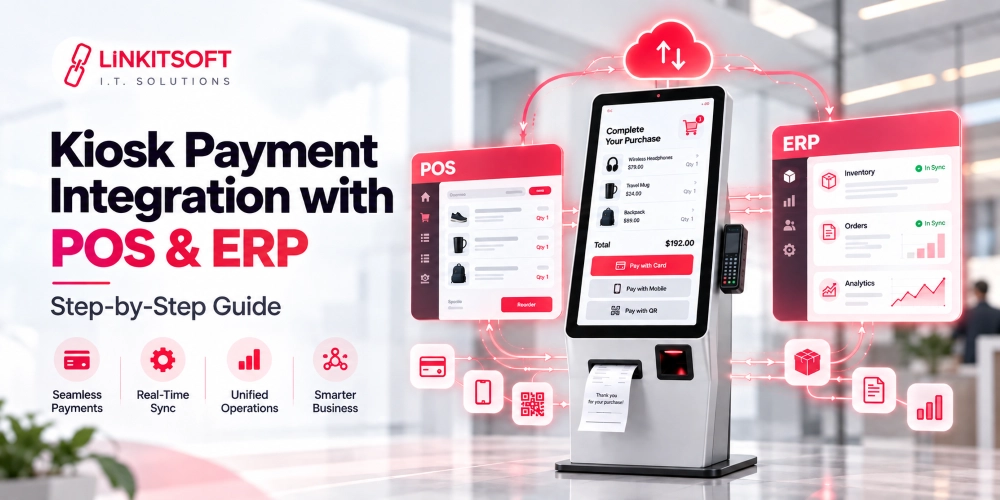
Ticketing and payment kiosks guide users through transactions such as ticket purchases, bill payments, parking, event entry, and other self-service payment flows. These deployments require careful payment integration, clear transaction states, and secure handling of customer and transaction data.
Where payment cards are involved, the deployment should use appropriate approved payment components and be designed around the organization’s applicable PCI DSS responsibilities. Kiosk software should minimize unnecessary exposure to cardholder data rather than storing sensitive payment information without a business need.
What Hardware Does Touch Screen Kiosk Software Need to Support?
Hardware requirements depend entirely on the kiosk workflow. A simple directory kiosk may only need a touchscreen display and network connection, while an ordering, payment, or registration kiosk may rely on several connected peripherals.
Touchscreen displays are the primary interface. Printers and scanners can handle receipts, tickets, forms, QR codes, and barcodes. Payment terminals process supported payment methods. Cameras, NFC readers, speakers, microphones, sensors, and other devices can be added when the workflow requires them.
Compatibility should be validated at the operating-system, driver, SDK, and application levels. Testing the exact hardware models before a full rollout helps identify communication issues and vendor-specific behavior early.
How Do You Manage and Secure Interactive Kiosk Displays?
Security should be part of the kiosk architecture from the beginning rather than added after development. Public-facing devices need controls that limit what users can access while still allowing authorized teams to maintain the system.
A secure kiosk setup typically restricts operating-system access, runs the kiosk application with appropriate permissions, protects administrative functions with strong authentication, secures API credentials and tokens, encrypts sensitive communications, applies tested security updates, and clears temporary user data at the end of each session.
For distributed deployments, monitoring and centralized management are equally important. Administrators should be able to identify offline devices, review application and peripheral status, investigate errors, and deploy configuration or software changes without visiting every site. Logging and incident-response procedures also help teams understand what happened if a kiosk is tampered with or compromised.
For a more detailed treatment of device lockdown, application allowlisting, peripheral controls, encryption, access control, and incident response, read the Kiosk Security and Lockdown: Complete Guide.
What Should You Consider When Choosing Touch Screen Kiosk Software?
Choosing kiosk software starts with understanding the workflow, hardware, integrations, security requirements, operating environment, and scale of the deployment.
Start With the Kiosk Workflow
Define exactly what users need to accomplish and which steps happen on the kiosk versus in a connected business system. That clarity helps determine the screen flow, data requirements, integrations, and hardware needed for the project.
Check Hardware and Operating-System Compatibility
The software needs to work with the specific touchscreen, operating system, payment hardware, printers, scanners, and other peripherals in the planned setup. Compatibility assumptions should be validated before development and rollout.
Map Out Required Integrations
Identify required integrations before development begins. These may include POS systems, CRM platforms, booking systems, inventory tools, payment services, identity systems, analytics platforms, or internal applications. Integration constraints often shape both the architecture and the user experience.
Plan for Security and Remote Management
Security and remote management become more important as the number of kiosks grows. A setup that works smoothly in one location can become difficult to maintain across dozens or hundreds of sites without centralized visibility, controlled updates, device policies, and diagnostic tools.
Decide Between Custom and Off-the-Shelf Software
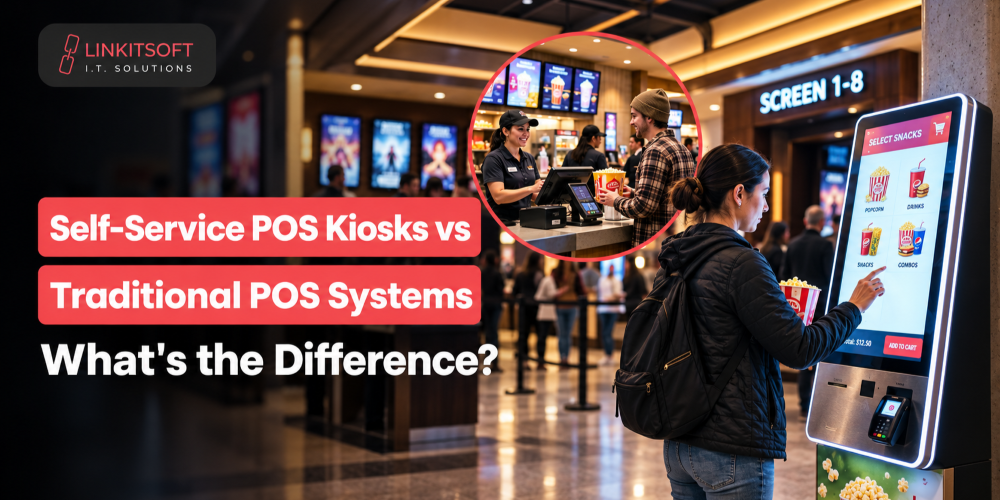
A simple fixed-purpose kiosk may be well served by an existing off-the-shelf product. A kiosk with specialized workflows, unusual hardware requirements, unique branding, complex integrations, or long-term product requirements may benefit from custom software built around the business process.
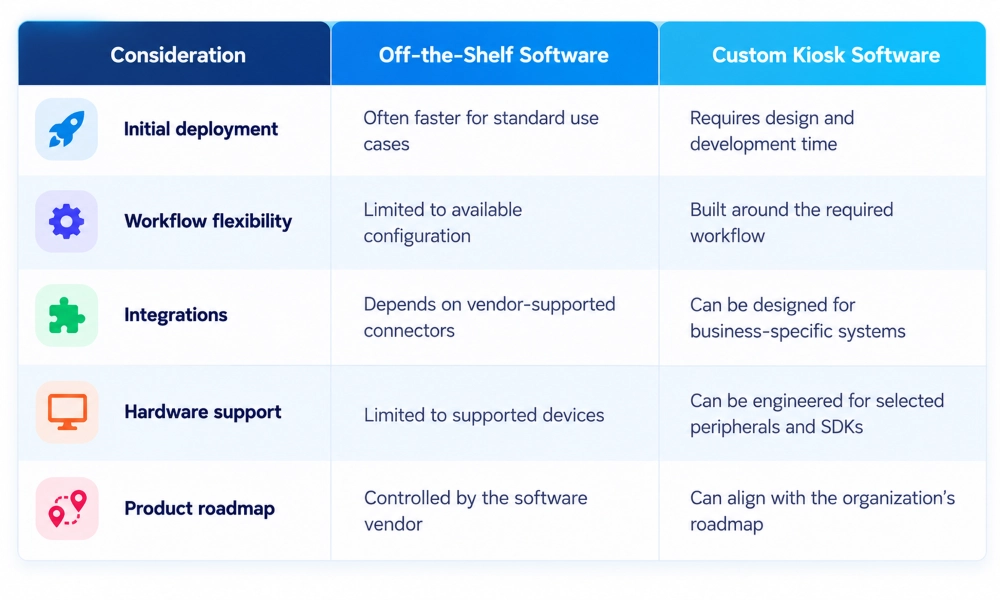
For a detailed comparison of these approaches, see Custom vs Off-the-Shelf Kiosk Software: Which Is Right for You?. If you are planning a new build, LinkitSoft’s kiosk software development guide also explains the broader development process and architecture considerations.