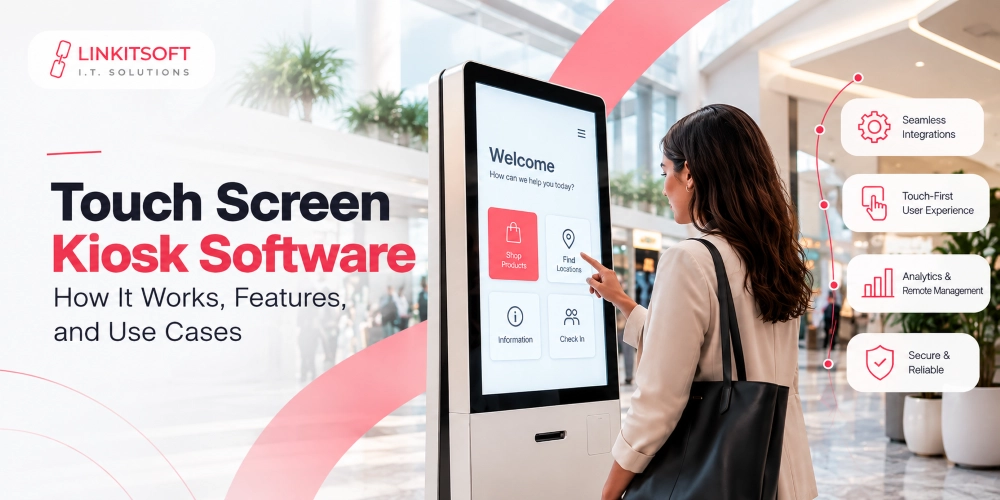
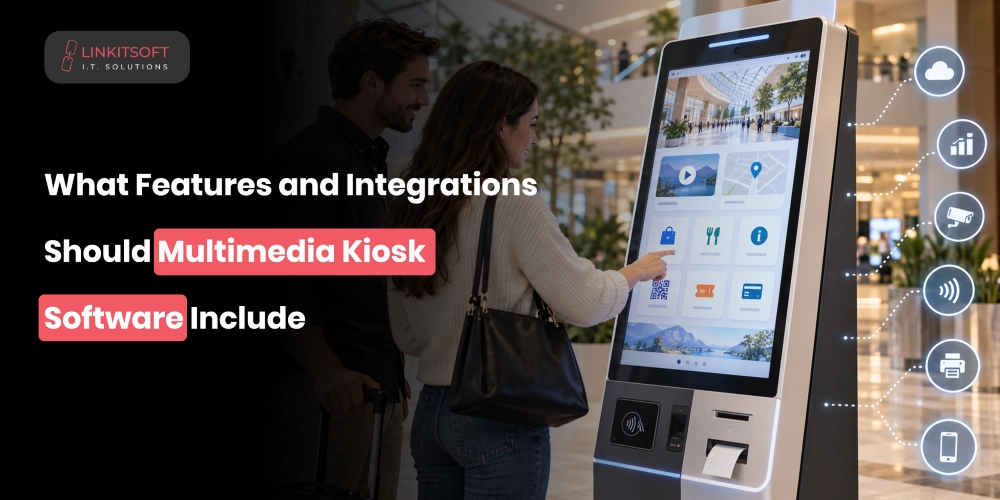
A multimedia kiosk can do much more than play videos or display promotional images. With the right software, it becomes an interactive space where visitors can explore information or engage with branded content without needing staff to assist.
Behind that simple touchscreen experience, several systems are working together. The software manages media playback and resets the interface before the next person uses it. If any of these parts fail, the experience can quickly become frustrating.
That is why the kiosk’s development needs to focus on both the visible interface and the systems working behind it. In this blog, we’ll explore the core features and integrations, along with the content management capabilities that it should include.
What Core Features Should Multimedia Kiosk Software Include?
The features you need will depend on what purpose the kiosk is being used for. Yet, certain capabilities are useful across most deployments.
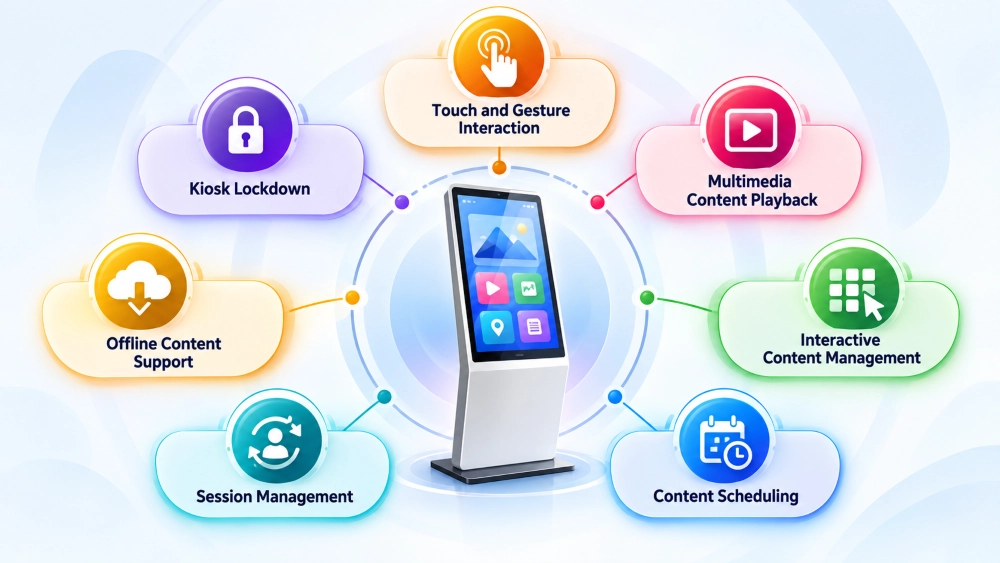
Touch and Gesture Interaction
Touch is usually the primary way people interact with a multimedia kiosk, so it needs to feel natural and responsive from the first tap.
Multi-touch support allows users to interact with more than one finger simultaneously, which matters for maps, image galleries, and product exploration. Beyond that, tapping buttons, dragging objects, and zooming into content should all behave consistently throughout the application.
The software should also allow developers to define interactive areas for different content types without rebuilding the entire application every time something changes.
Multimedia Content Playback
Most multimedia kiosks combine several content formats in a single experience. Now, this can include anything from audio, images, and embedded web content, etc. The software needs to handle full screen and embedded playback depending on the layout, provide proper playback controls including pause, stop, repeat, and mute, and manage errors gracefully so a problematic file doesn’t freeze the whole interface.
Interactive Content Management
Multimedia gets considerably more useful when users can actually do something with it rather than just watching. So, interactivity can make it better by allowing users to:
- Browse a product catalogue
- Explore a map
- Complete a form
- Select a service
Each action should lead to a clearly defined result that’s been planned around the kiosk’s purpose. A product selection might open specifications or move the user toward payment. These flows should feel connected rather than like separate features bolted together.
Content Scheduling
Scheduling lets businesses display different content at specific times or under specific conditions without sending someone to manually update each device. A retail kiosk might show one campaign in the morning and a different one in the evening. A transport terminal might display different announcements by time of day. Scheduling rules based on date, time, location, or campaign category let the system handle these switches automatically.
Session Management
Dozens or hundreds of people might use the same kiosk in a single day. Each person needs a clean session with no trace of whoever came before them. The software should start a fresh session and reset the interface after completion or inactivity. Temporary selections and any personal information should be cleared when the session ends.
Automatic timeouts handle the common situation where someone walks away without finishing, returning the screen to a welcome state and preparing it for the next user.
Offline Content Support
A reliable internet connection is useful but shouldn’t be a hard dependency for basic media playback. Storing videos/images and other assets locally means the kiosk keeps working when connectivity drops, which is particularly relevant for exhibitions and remote environments.
When the connection returns, the system syncs updates automatically. Dynamic services that need live data will still require connectivity, so offline behaviour needs to be planned separately for each function.
Kiosk Lockdown
Lockdown restricts the device to its intended application and prevents users from reaching the desktop, system settings, file folders, or anything else outside the kiosk experience. This protects the device from accidental misuse and makes it harder for someone to interfere with the underlying system. The level of restriction should match the environment and the operating system being used.
What Hardware Should Multimedia Kiosk Software Integrate With?
The software must work with the physical components that make the kiosk interactive.
Displays and Touchscreens
The software needs to support the required screen resolution, aspect ratio, orientation, and touch capabilities. Some deployments use multiple displays, perhaps one facing customers and another visible to nearby staff. Content should adapt to the screen size so text, videos, buttons, and interactive elements all remain properly usable.
Audio Hardware
Speakers work for videos, announcements, and accessibility features. Some kiosks support headphones for private audio. The software should control volume, playback, and audio output selection. Audio behaviour also needs to suit the environment since a museum kiosk and a shopping centre promotional screen have very different requirements around sound.
Cameras and Sensors
Cameras can support image capture, identity verification, or interactive experiences. Motion and proximity sensors can detect when someone approaches and trigger the display to wake or start an introductory animation. Any data captured by these components should only be collected for the intended function and handled according to the organisation’s privacy requirements.
Printers and Scanners
Printers produce receipts, tickets, labels, and documents at the kiosk. Scanners read QR codes, barcodes, identity documents, and forms. When either device is unavailable, the software should communicate this clearly rather than leaving users unsure what happened.
Payment Devices
Some multimedia kiosks handle transactions alongside content. Card readers, NFC readers, and dedicated payment terminals need to integrate properly with the kiosk application. A product exploration kiosk that also completes purchases needs additional transaction handling, security controls, and integration with approved payment services built in from the start.
What Backend Integrations Does Multimedia Kiosk Software Need?
Multimedia kiosks often depend on backend systems to keep content updated and connect interactive experiences with business operations.
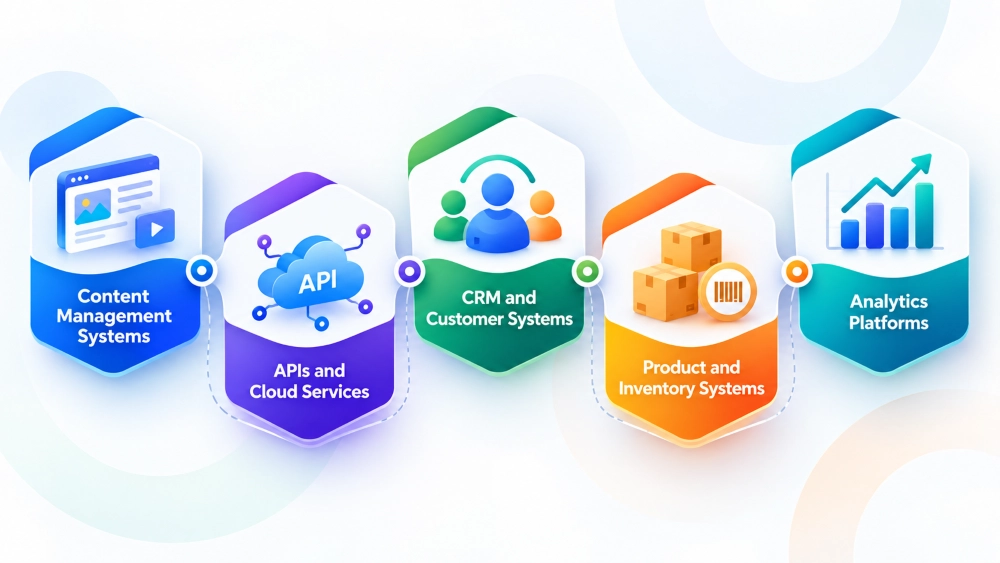
Content Management Systems
A CMS lets authorised teams upload, organise, update, and publish media without manually configuring individual kiosks. Teams can manage videos and interface content centrally. This becomes particularly valuable when content changes frequently, or the business runs kiosks across multiple locations.
APIs and Cloud Services
APIs allow the kiosk to retrieve live information and send data to connected systems. Current event listings, updated product details, submitted forms, interaction data. Cloud services handle media storage and content synchronisation across devices. The software should handle connectivity issues gracefully rather than assuming every API call will succeed.
CRM and Customer Systems
When a kiosk collects customer information or supports personalised experiences, CRM integration becomes relevant. Personal information should only be collected when necessary and handled according to the organisation’s privacy obligations.
Product and Inventory Systems
Retail and promotional kiosks need to display current product information, including names, prices, descriptions, and availability. Connecting to inventory systems prevents outdated information from reaching the screen. If a product is unavailable, the kiosk should reflect that immediately rather than letting customers select something they can’t actually get.
Analytics Platforms
Analytics integrations help businesses understand how people actually use the kiosk. Content views, menu selections, completed workflows, abandoned sessions, interaction frequency. This shows which content is working and where users are hitting friction. Tracking should be limited to genuinely useful data and handled carefully to avoid collecting personal information unnecessarily.
How Should Multimedia Kiosk Software Manage Content Across Multiple Devices?
Managing one kiosk is relatively simple. Managing dozens of devices across different locations requires a more organised approach.
Centralised Content Updates
A central management platform should allow authorised teams to push media, interface changes, and configuration updates to selected kiosks without visiting each device. This maintains consistent branding and ensures important changes reach the right locations quickly.
Location Based Content
Different kiosks often need different content. A branch kiosk might promote a local offer while another shows regional services or location-specific directions. Location-based rules let the system deliver the right content to the right device automatically.
Device Groups
Grouping kiosks by branch, campaign, environment, or deployment purpose makes managing updates considerably more practical. Updates can be applied to the right group without touching every device individually.
Content Versioning
Version tracking records which media and interface versions are currently deployed across the fleet. If an update causes a problem, administrators can restore an earlier version quickly. This is particularly useful when multiple campaigns or interface updates are running simultaneously.